Installing Linux Apps, from Zorin.com
The following was taken directly from a page at zorin.com. We like the info below not only because Zorin is a great distro; the article also applies well to Ubuntu Apps installations, and explains a wide variety of ways to find and install Apps in the Linux environment at large, especially as it applies to debian-based distros such as Zorin OS and Ubuntu OS. We also like the inclusion of Synaptic Package Manager.
Install Apps
How to install additional apps and software from the Software store, .deb files, and other sources.
Software store
You can discover a world of apps for Zorin OS from the built-in Software store. This is the recommended way to install apps in Zorin OS.
The Software store allows you to install apps from the Zorin OS & Ubuntu APT repositories, Flathub, and the Snap Store out of the box.
- Open the Zorin Menu and click on “Software”.
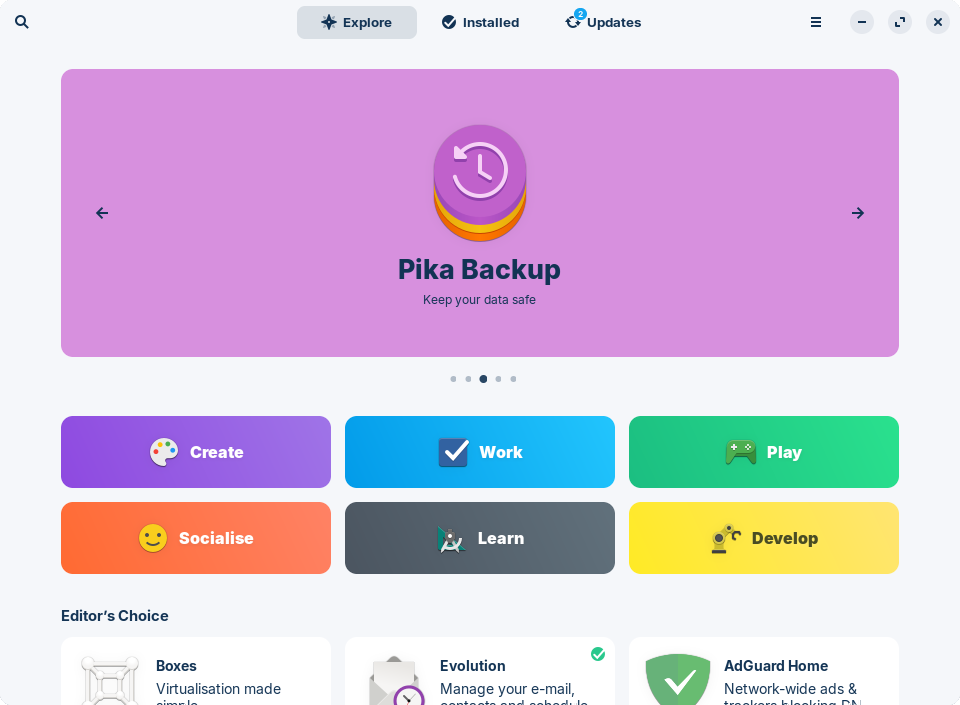
- You can explore recommended apps from the home screen.
- If you know which app you want to install, press the button in the top-left corner of the window. Start typing its name in the search bar to see search results.
- Click on the app to view a description of it, as well as some screenshots.

- When you’re ready to install the app, simply click “Install”. You may be prompted for your password during the installation process.


After the installation completes, you should see the newly installed app in the relevant category of the Zorin Menu.
Apps in .deb files
Some third-party apps can be downloaded from the web in the form of .deb install files for Linux. They will be installed as native apps on your system.
- As Zorin OS 18 is based on Ubuntu 24.04, select to download the corresponding package from the app developer’s website.
- Double-click to open the .deb file.
- Verify that you trust the source of the app when prompted. You should then see the Software store window showing information about the downloaded app.
- Press the “Install” button. You may be prompted for your password during the installation process.
After the installation completes, you should see the newly installed app in the relevant category of the Zorin Menu.
Apps in .AppImage files
Some third-party apps can be downloaded from the web in the form of .AppImage executable files for Linux. They will be run as self-contained portable apps from wherever the .AppImage file is saved on your system.
- After downloading the .AppImage file; open the Files app and navigate to your “Downloads” folder.
- Double-click on the .AppImage file to run the app.
- If it’s the first time you’re running this app, you may need to accept running the .AppImage if prompted.
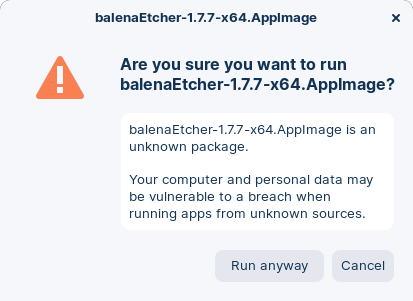

To run this app again in the future, simply navigate to your “Downloads” folder and double-click on the .AppImage file to run it. You can move the .AppImage file to any other location if you prefer.
Windows apps (.exe and .msi files)
View Windows App Support instructions ›
Add an APT repository / PPA
Some app developers may create a repository for their apps in Linux. By adding an APT repository or PPA, new versions of the app automatically become available as software updates.
Open the Zorin Menu and go to “Utilities” → “Terminal”.
Copy the commands from the developer’s instructions and paste them into the Terminal window.
If the repository is hosted on Launchpad. You can simply add it to your system by entering this command, replacing “developer” and “repository-name” with the correct names for the app:
sudo add-apt-repository ppa:developer/repository-name
Refresh your app sources with this command:
sudo apt updateApps from the new repository should now become available to install on your system. Copy the command(s) from the app developer’s instructions to install the relevant apps from this repository.
When new versions of the app(s) in this repository are released, they will be available to install in the Software Updater.
Software in .tar.gz source archives
Please make sure you trust the package's source before installing it. Your computer and personal data may be vulnerable to a breach when running software from unknown sources.
Some third-party Linux software can be downloaded from the web in the form of .tar.gz source archives. These packages are usually not ready to be installed as they must be compiled beforehand.
Open the file browser to find the downloaded .tar.gz file.
Right-click on the file and select “Extract Here”.
Package authors usually include the build and installation instructions inside the source archive. Please open the enclosed “README” and/or “INSTALL” file.
Right-click on the extracted folder and select “Open in Terminal”.
Enter the commands listed in the instruction text file (which you opened in step 3) into the Terminal to correctly install the app.
If you experience any compilation errors, you may need to enter this command into the Terminal before trying this step again:
sudo apt install build-essential
After the installation completes, you may close the Terminal app.
If you experience any errors, we recommend that you contact the developer of the package to resolve the issue.
System packages/libraries
- Open the Zorin Menu and click on “Software”.
- Search for and install “Synaptic Package Manager”.
- After the installation completes, open the Zorin Menu and go to “System Tools” → “Synaptic Package Manager”.
- Find the package you wish to install and click on the checkbox beside its name to “Mark for Installation”.
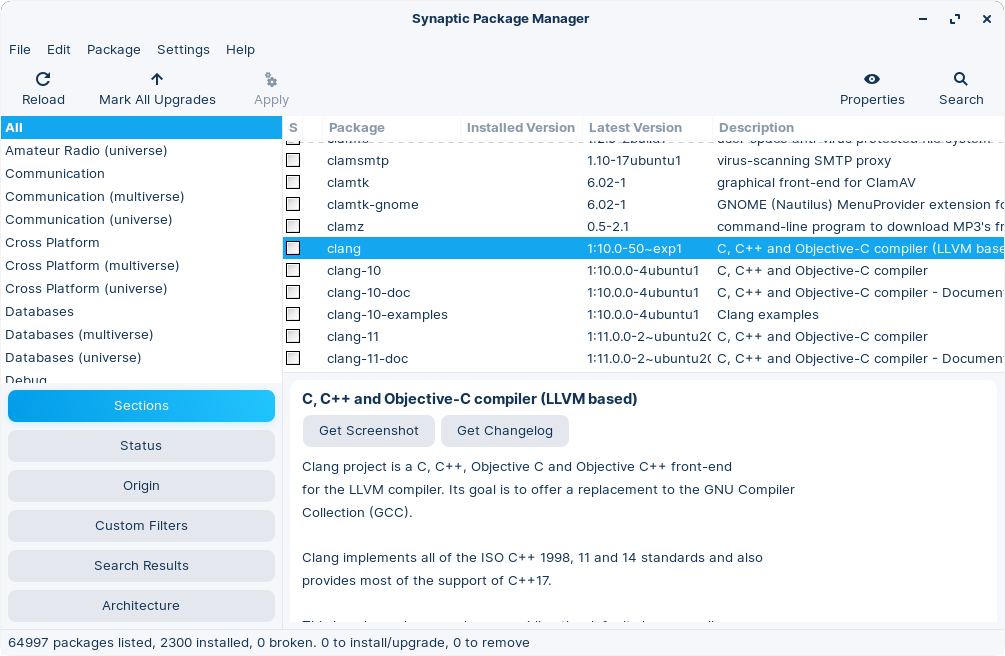
- Click the “Apply” button at the top of the app to install the package.

The package should now be installed on your system.


Comments
Post a Comment